Connect and Install Grillo One
Before you begin
- Claim the sensor in Grillo Cloud.
- A 5 V USB-C power supply and cable. USB-C is the only way to power Grillo One.
- For Ethernet: a cable to a network that gives out addresses by DHCP.
- For Wi-Fi: the name and password of a 2.4 GHz network, and a phone or laptop.
- Ask the site's network administrator to allow outbound UDP on ports 5683 and 5684, and NTP (UDP port 123).
Ethernet or Wi-Fi
Grillo One chooses its connection once, when it starts:
- If an Ethernet cable with a working link is connected, it uses Ethernet.
- If not, it uses Wi-Fi.
It does not switch while running. If you plug in or remove the Ethernet cable later, restart the sensor by unplugging the USB-C cable and plugging it back in.
Connect with Ethernet
- Plug the Ethernet cable into the sensor.
- Connect the USB-C power supply.
The sensor finds the link within about 5 seconds and gets an address by DHCP. No further setup is needed.
Connect with Wi-Fi
With no Ethernet link and no Wi-Fi details saved, Grillo One starts its own setup network.
- Connect the USB-C power supply, with no Ethernet cable plugged in. The Network light turns solid blue while the setup network is running.
- On your phone or laptop, join the Wi-Fi network named
GrilloOne-XXXX, whereXXXXis four characters unique to the sensor. The network has no password. - A setup page titled Grillo One opens. If it does not, browse to
http://192.168.4.1. - Under WiFi Configuration, choose your network from the list or type its name.
- Enter the Wi-Fi password and select Connect.
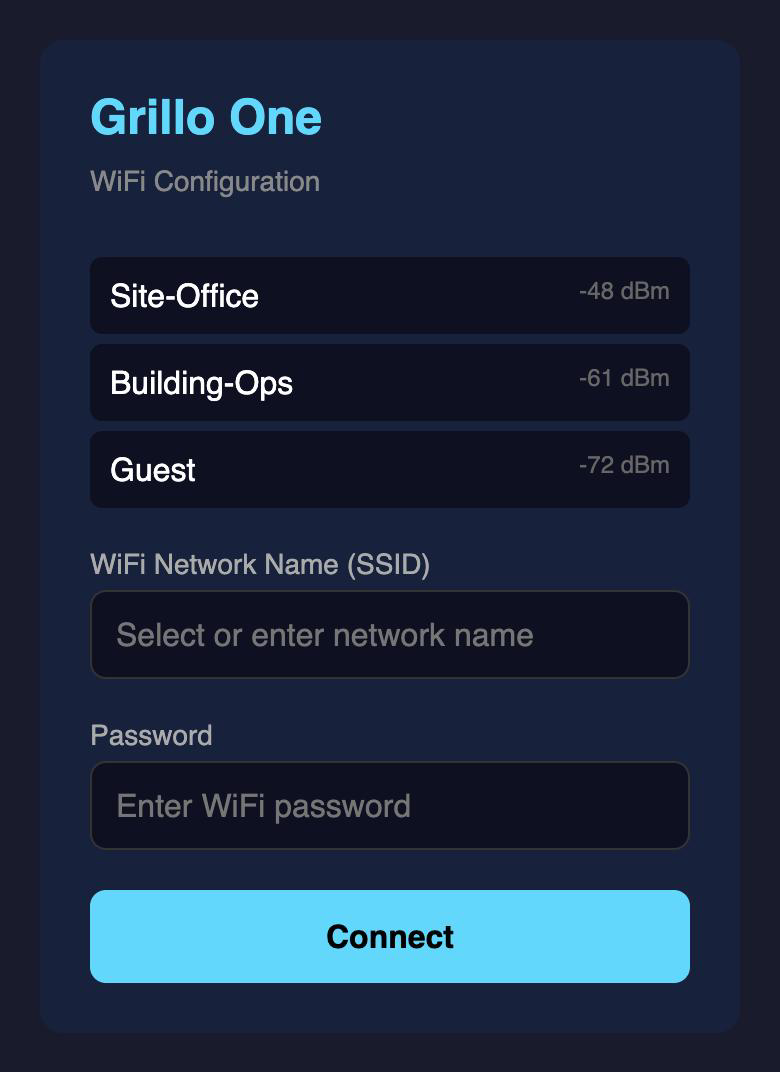
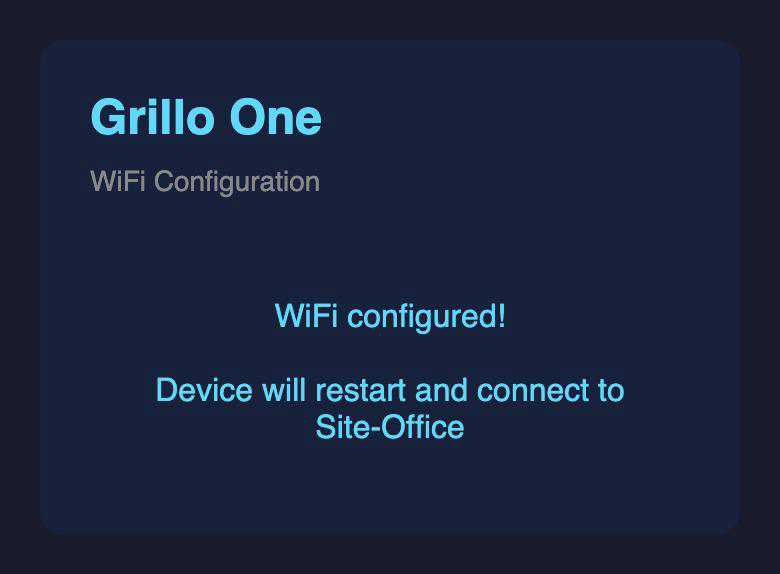
The page confirms WiFi configured! The sensor saves the details, restarts, and joins your network. The GrilloOne-XXXX network disappears. From then on it reconnects to the same Wi-Fi network by itself every time it starts.
If you plug in an Ethernet cable while the setup network is running, the sensor switches to Ethernet and skips Wi-Fi setup.
Status lights
Grillo One has three colour lights: Network, Sensor, and Data.
| Light | Colour | Meaning |
|---|---|---|
| Network | Blue, pulsing | Connecting |
| Network | Blue, solid | Wi-Fi setup network is running; join GrilloOne-XXXX |
| Network | Green | Connected |
| Network | Red | Connection failed |
| Sensor | Blue, pulsing | Starting up |
| Sensor | Green | Accelerometer recording |
| Sensor | Red | Accelerometer not responding |
| Data | Green flash | A packet of seismic data was sent |
| Network and Sensor | Purple, flashing | Firmware update in progress. Do not disconnect power. |
A healthy sensor shows Network green, Sensor green, and Data flashing green about four times a second.
If Network and Sensor are green but Data never flashes, the sensor is not yet claimed or has not yet received its station code. Check it is claimed in the right project, then wait a minute for its next health report.
Mount the sensor
- Fix the sensor rigidly to the structure or floor you want to measure. A loose sensor records its own rattling.
- Mount it level, and note which way it faces so you can interpret the north and east channels.
- Keep it away from machinery, doors, and foot traffic where you can.
- Use it indoors, or in an enclosure rated for the location.
See Sensor Placement for choosing a site.
Verify
In Grillo Cloud, open Sensors and check that the sensor is online and its Last Seen time is current. Grillo One sends a health report every minute. See Verify Sensor Status.
Firmware updates
The latest Grillo One firmware is 1.0.1.
Update over the air
If the sensor appears in Grillo Cloud with a firmware version, update it from there. See Update Firmware. While it updates, the Network and Sensor lights flash purple; then it restarts.
The new firmware checks the accelerometer when it starts. If that check fails, the sensor rolls back to the previous version by itself.
Older sensors
Older Grillo One units, including sensors from the OpenEEW project, may run older firmware that cannot connect to Grillo Cloud or update over the air. Signs of this:
- The sensor never appears online in Grillo Cloud, even with a working network.
- It does not create a
GrilloOne-XXXXsetup network. - The lights do not match the status lights above.
These sensors need the current firmware installed over USB-C from a computer. Contact Grillo Support with the Device ID: we will send you the full firmware image and step-by-step instructions, or update the sensor for you.
The firmware file Grillo Cloud uses for over-the-air updates is published at:
https://firmware.cloud.grillo.io/grillo-one/1.0.1/grillo-one-firmware.bin
This is the application image only. It is for sensors already running Grillo One firmware 1.x; writing it to an older sensor on its own will not work.
Troubleshooting
| Problem | What to do |
|---|---|
| No lights at all | Check the USB-C cable and power supply. Try another cable and power supply. |
| Network light keeps pulsing blue | On Ethernet, check the cable and that the network provides DHCP. On Wi-Fi, the sensor may be out of range. |
| Network light red | The connection failed. Check the cable or Wi-Fi signal, then restart the sensor. |
GrilloOne-XXXX network does not appear | Unplug the Ethernet cable and restart the sensor. The setup network only starts when there is no Ethernet link and no saved Wi-Fi details. |
| Wrong Wi-Fi password entered | After three failed attempts the sensor forgets the saved details, restarts, and reopens the setup network. Join it and enter the details again. |
| Switched from Wi-Fi to Ethernet, or back, and nothing changed | The connection is chosen at start-up. Restart the sensor. |
| Network green but sensor offline in Grillo Cloud | Outbound UDP on ports 5683 and 5684 is probably blocked. Ask the network administrator. Also confirm the sensor is claimed in the right project. |
| Online in Grillo Cloud but Data never flashes | The sensor has not received its station code yet. Check it is claimed, then wait a minute. |
| Sensor light red | The accelerometer did not respond. Restart the sensor; if it stays red, contact support. |
| Never online, no setup network, or unfamiliar lights | It may be an older sensor. See Older sensors. |
Contact Grillo Support with the Device ID and the colours of the three lights.