Live Map

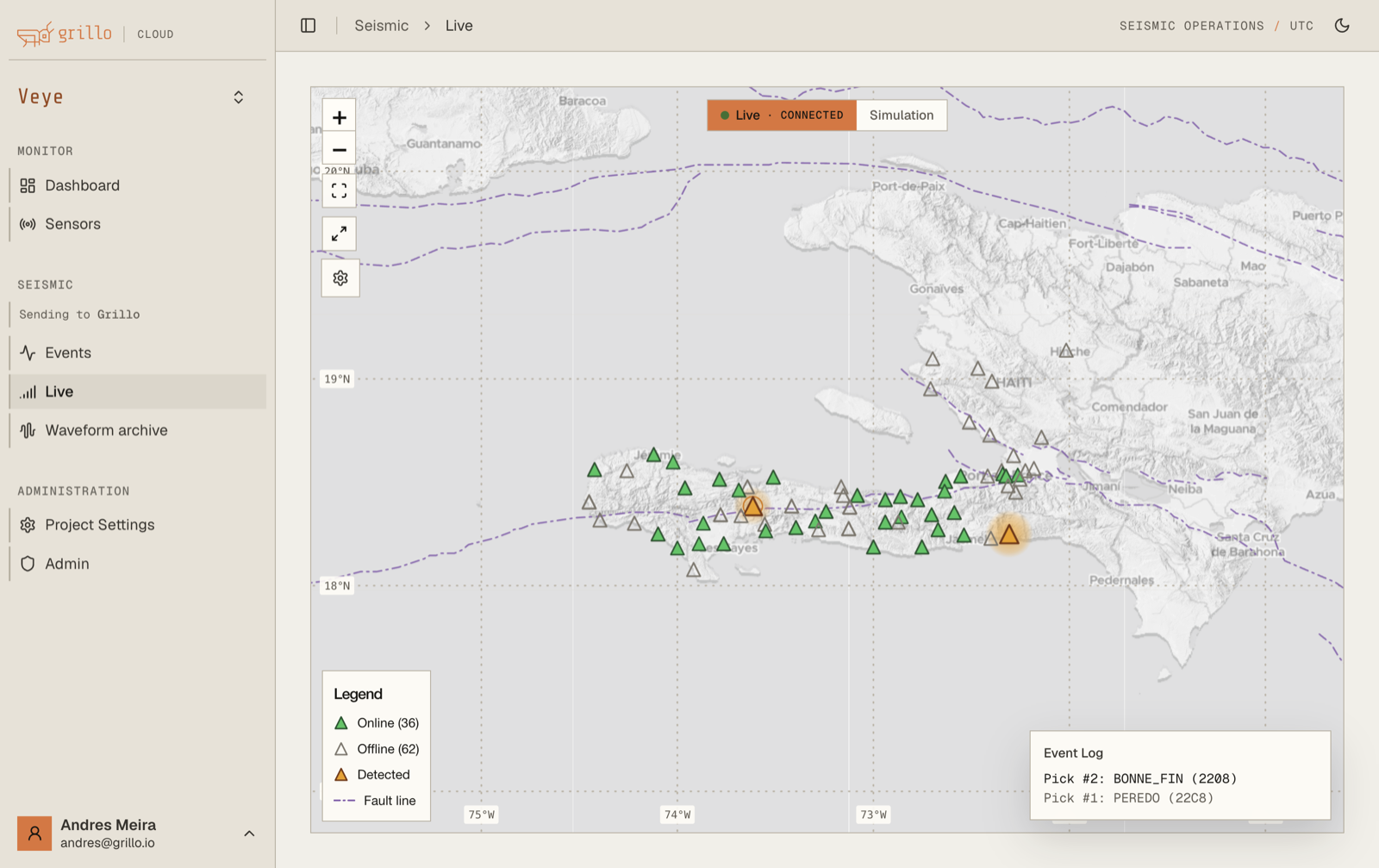
The Live Map provides a real-time visualization of seismic activity across your network, showing station detections and earthquake wave propagation as they happen.

Live Map

Overview

The Live Map is your window into what's happening right now:

  • Station detections - See which sensors are detecting ground motion
  • Earthquake visualization - Watch P and S waves propagate outward from the epicenter
  • Real-time updates - Data refreshes continuously as events unfold

Accessing the Live Map

  1. Navigate to your network
  2. Click "Live Map" in the sidebar or top navigation
  3. The live visualization will begin streaming

Understanding the display

Station indicators

Stations change appearance based on current activity:

IndicatorMeaning
Idle (gray/green)No significant motion detected
Triggered (yellow)Elevated ground motion detected
Alert (red)Strong motion / event detection
PulsingCurrently receiving data

Wave propagation circles

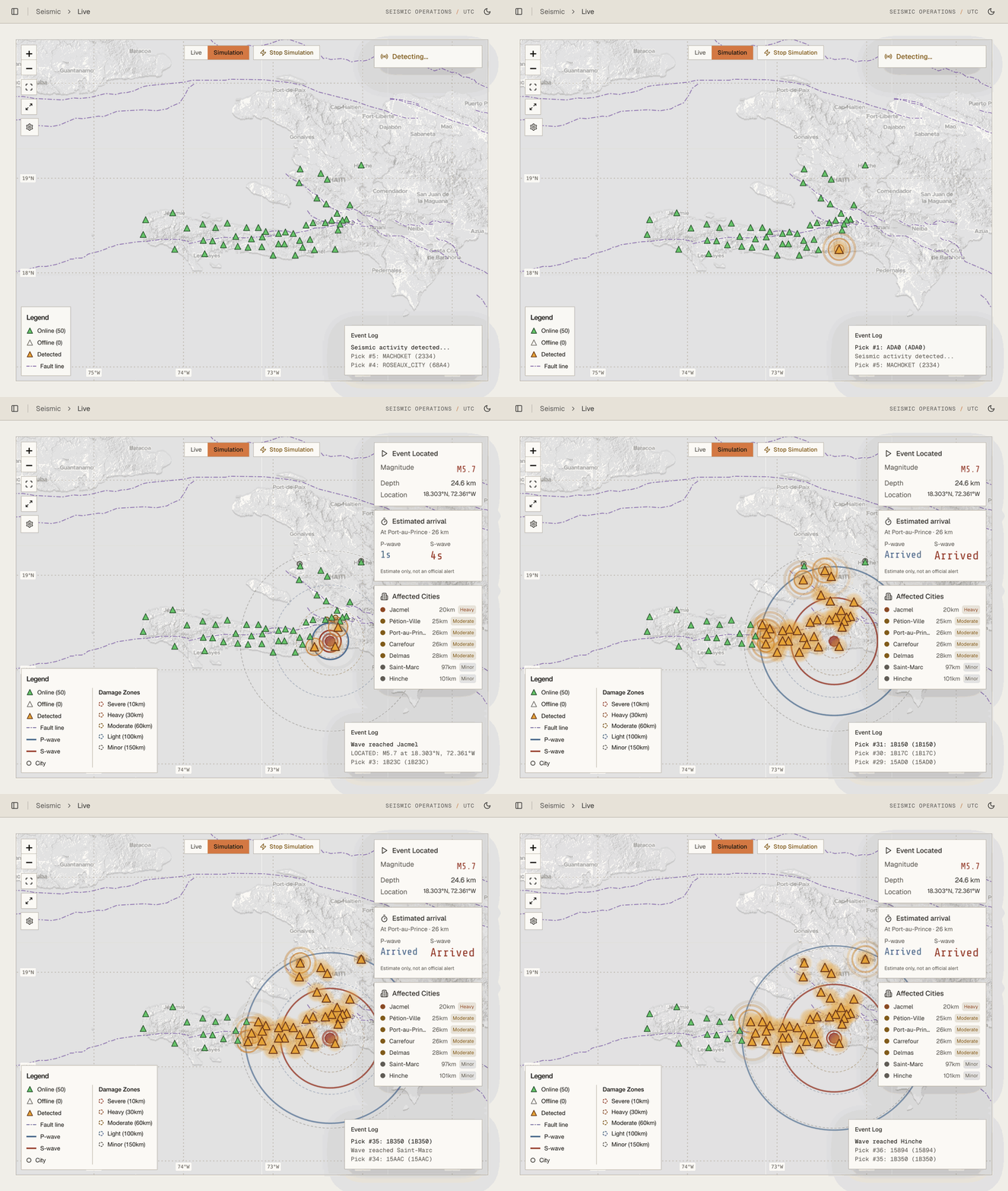
When an earthquake is detected, expanding circles show wave propagation:

CircleColorDescription
P-waveBluePrimary wave - fastest, arrives first
S-waveRed/OrangeSecondary wave - slower, more destructive

The circles expand outward from the epicenter at the approximate speed of seismic waves, showing:

  • Which stations have already been reached
  • Which stations will be affected next
  • Estimated arrival times at each location

Epicenter marker

The earthquake source is shown as:

  • A star or circle at the epicenter location
  • Magnitude displayed nearby
  • Click for event details

Real-time features

Detection timeline

As an event unfolds:

  1. First detection - Initial station triggers, shown on map
  2. Event located - Epicenter calculated, waves begin expanding
  3. Wave propagation - Circles expand showing P and S wave fronts
  4. Station alerts - Each station highlights as waves arrive
  5. Event complete - Waves pass through network, event cataloged

Station triggering

Watch stations respond in real-time:

  • Stations flash or pulse when detecting motion
  • Color intensity indicates ground motion amplitude
  • Triggering pattern helps confirm real events vs. noise

Map controls

Playback controls

ControlFunction
Play/PauseStart or stop live updates
SpeedAdjust visualization speed (1x, 2x, 5x)
RewindReplay recent events

View controls

ControlFunction
ZoomMouse wheel or +/- buttons
PanClick and drag
CenterReset to network center
FullscreenExpand to full screen

Layer toggles

Show or hide map elements:

  • Station markers
  • Wave propagation circles
  • Epicenter markers
  • Station labels
  • Terrain/satellite imagery

Event information panel

When an event is active or selected:

  • Magnitude - Current estimate (may update)
  • Location - Epicenter coordinates and description
  • Depth - Estimated depth
  • Time - Origin time
  • Status - Detecting / Located / Complete
  • Stations triggered - Count and list

Using the Live Map effectively

During an earthquake

  1. Watch the detection pattern spread across your network
  2. Note which stations trigger first (closest to epicenter)
  3. Observe wave propagation to estimate event location
  4. Monitor magnitude estimates as more data arrives

For monitoring

  • Keep the Live Map open on a dedicated display
  • Enable sound alerts for significant events
  • Use the timeline to review recent activity

For presentations

  • Replay past events to demonstrate detection capabilities
  • Adjust playback speed to show wave propagation clearly
  • Use fullscreen mode for better visibility

Settings

Alert thresholds

Configure when visual alerts appear:

  • Minimum magnitude to display
  • Detection confidence threshold
  • Alert colors and sounds

Display preferences

SettingOptions
Wave speedReal-time, accelerated
Circle opacitySolid to transparent
Station sizeSmall, medium, large
Auto-centerOn new events, never

Performance

For networks with many sensors:

  • Reduce animation detail
  • Limit displayed time window
  • Use simplified wave graphics

Mobile access

The Live Map works on mobile devices:

  • Touch to pan and zoom
  • Tap stations for info
  • Landscape mode recommended
  • May have reduced animation detail

Troubleshooting

Map not updating

  1. Check internet connection
  2. Verify the play button is active
  3. Refresh the page
  4. Check if there are any active events

Waves not displaying

  1. Ensure an event is currently active or selected
  2. Check layer toggles - waves may be hidden
  3. Zoom out to see the full propagation area
  4. Verify events subscription is active

Performance issues

  1. Reduce animation quality in settings
  2. Close other browser tabs
  3. Try a different browser
  4. Use a wired internet connection