Map View

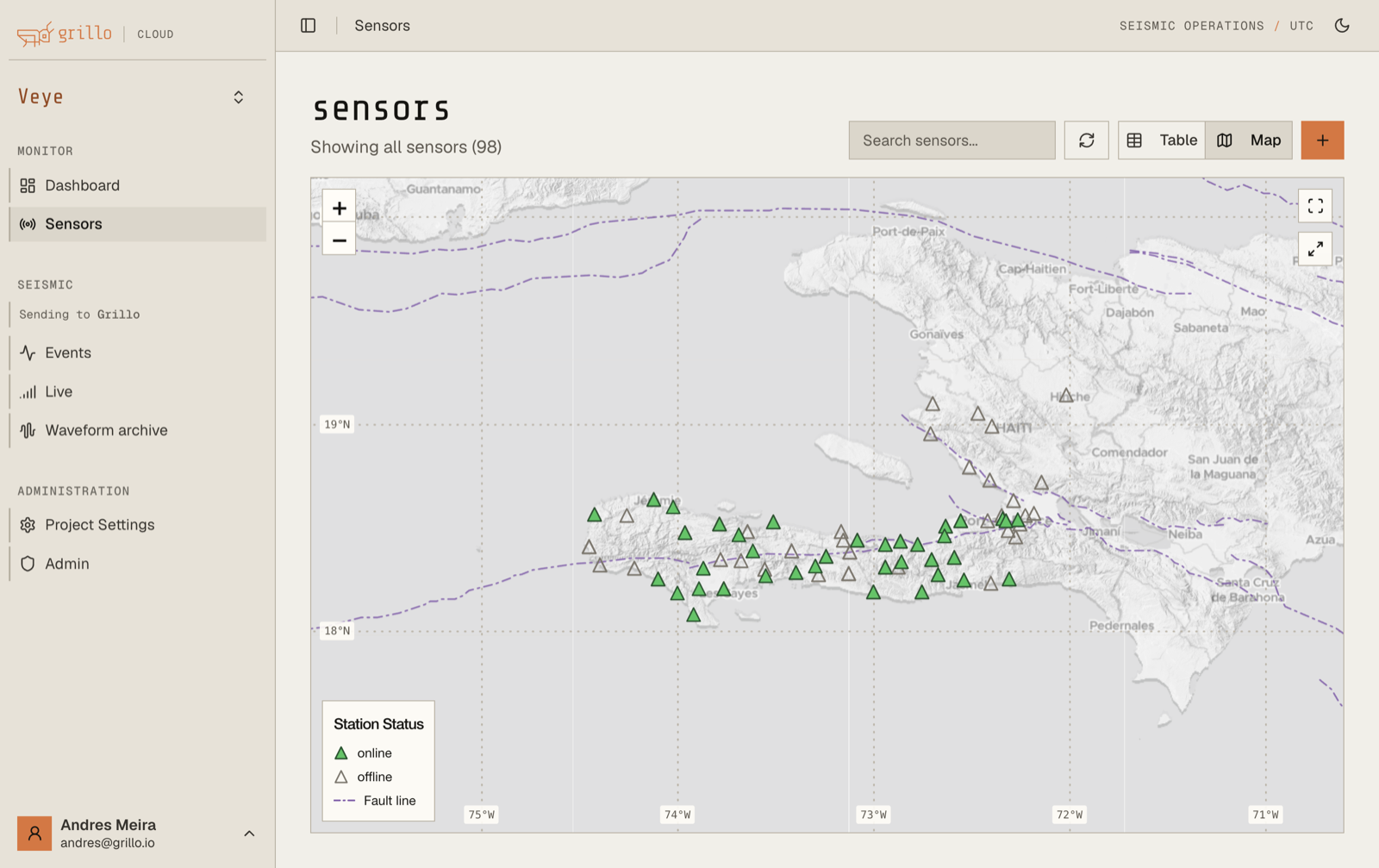
The map view provides a geographic visualization of your sensors, showing their locations and status at a glance.

Accessing map view

  1. Navigate to your network
  2. Click the "Map" tab or icon
  3. The map will display all sensors in the network

Map view

Map interface

Sensor markers

Sensors are displayed as markers on the map:

Marker colorStatus
GreenOnline - connected and streaming
GrayOffline - not currently connected
YellowWarning - connected with issues
RedError - problem requiring attention

Map controls

ControlFunction
Zoom in/outMouse wheel or +/- buttons
PanClick and drag
Reset viewClick the home/reset button
FullscreenClick fullscreen button

Layers

Toggle map layers:

  • Satellite - Satellite imagery
  • Terrain - Topographic view
  • Streets - Road map view
  • Events - Show detected events (if enabled)

Interacting with sensors

Quick info popup

Click on a sensor marker to see:

  • Sensor name/station code
  • Current status
  • Last data timestamp
  • Quick action links

Sensor detail pane

Click "View details" in the popup to open the full sensor detail pane.

Cluster view

When zoomed out, nearby sensors may cluster:

  • Clusters show the count of sensors
  • Click a cluster to zoom in
  • Colors indicate overall cluster status

Filtering sensors

By status

Filter to show only certain statuses:

  1. Click the "Filter" button
  2. Select status types to show:
    • Online
    • Offline
    • Warning
    • Error
  3. Map updates to show filtered sensors

By sensor type

Filter by device type:

  • Grillo One
  • Grillo Pulse

Search for specific sensors:

  1. Use the search box
  2. Enter station name or serial number
  3. Matching sensors are highlighted

Map features

Auto-fit

The map automatically fits to show all sensors when loaded. To re-fit:

  1. Click the "Fit to bounds" button
  2. Map will zoom to include all sensors

Current location

If location permissions are granted:

  • Your location appears as a blue dot
  • Helpful when visiting sensor sites

Scale bar

The scale bar shows the current map scale:

  • Adjusts as you zoom
  • Displays in km or miles based on preferences

Events on map

If your network has event detection enabled:

Event markers

  • Events appear as star or circle markers
  • Color indicates magnitude or age
  • Click for event details

Event visualization

  • Shakemaps may be displayed
  • Waveform animations available
  • Event history can be shown

Learn more about Events →

Map settings

Configuring the map

Access map settings via the gear icon:

SettingDescription
Default zoomInitial zoom level
Map styleDefault layer type
Cluster thresholdWhen to cluster markers
Auto-refreshHow often to update

Saving views

Save custom map views:

  1. Set up your preferred view
  2. Click "Save view"
  3. Name the view
  4. Access saved views from the dropdown

Exporting

Screenshot

Export the current map view as an image:

  1. Click the export/download button
  2. Choose image format (PNG, JPG)
  3. Image is downloaded

Print

Print the current map view:

  1. Click the print button
  2. Adjust print settings
  3. Print or save as PDF

Tips for effective use

Organizing sensor visibility

  • Use clear location coordinates for accurate placement
  • Configure sensor names for easy identification
  • Use consistent naming conventions

Performance

For networks with many sensors:

  • Use clustering to improve performance
  • Filter to show only relevant sensors
  • Consider using table view for large lists

Mobile use

The map works on mobile devices:

  • Pinch to zoom
  • Swipe to pan
  • Tap for sensor info

Troubleshooting

Sensors not appearing on map

  1. Verify sensors have location coordinates set
  2. Check if sensors are filtered out
  3. Ensure map is zoomed to correct area
  4. Try refreshing the page

Map not loading

  1. Check internet connection
  2. Try a different browser
  3. Clear browser cache
  4. Disable browser extensions

Wrong sensor locations

  1. Verify coordinates in sensor settings
  2. Check coordinate format (decimal degrees)
  3. Update location information