Creating an Organization
This guide walks you through creating a new organization in Grillo Cloud.
Prerequisites
- A Grillo Cloud account (create one here)
Steps to create an organization
1. Access the organization menu
- Log into cloud.grillo.io
- Click on the organization dropdown in the top navigation
- Select "Create new organization"
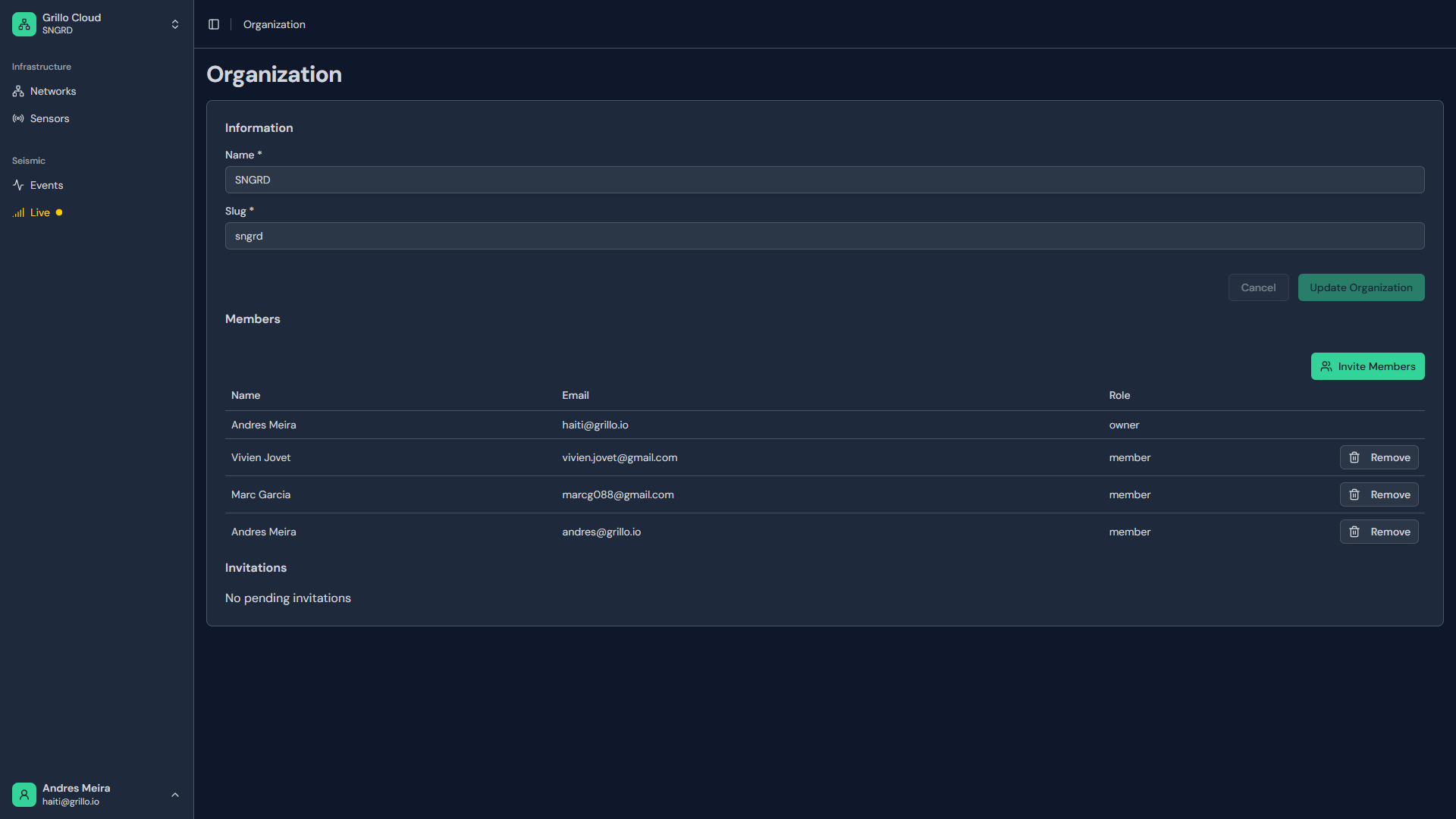
2. Enter organization details
Fill in the required information:
| Field | Required | Description |
|---|---|---|
| Organization name | Yes | Display name for your organization |
| Description | No | Brief description of the organization's purpose |
| Website | No | Your organization's website URL |
Organization name tips
- Keep it short but descriptive
- Use your company or team name
- Include location if you have multiple branches
- Examples:
- "Grillo Research"
- "University of California Seismic Lab"
- "City of Mexico EEW Network"
3. Confirm creation
- Review the entered information
- Click "Create organization"
- You'll be redirected to your new organization
After creating
You are automatically the Owner of organizations you create. As owner, you can:
Immediately do
- Invite team members - Add members to your organization
- Create networks - Set up your first seismic network
- Configure settings - Adjust organization preferences
Your owner permissions
As the organization owner, you have full access to:
- All organization settings
- Member management (invite, remove, change roles)
- Network creation and deletion
- Billing and subscription (if applicable)
- Organization deletion
Organization limits
| Resource | Free tier | Paid plans |
|---|---|---|
| Networks per org | TBD | TBD |
| Members per org | TBD | TBD |
| Sensors per network | TBD | TBD |
Transferring ownership
If you need to transfer organization ownership:
- Ensure the new owner is already a member
- Navigate to organization settings
- Find "Transfer ownership" option
- Select the new owner
- Confirm the transfer
warning
Transferring ownership cannot be undone. Make sure you select the correct person.
Deleting an organization
Only owners can delete an organization:
- Navigate to organization settings
- Scroll to "Danger zone"
- Click "Delete organization"
- Confirm by typing the organization name
- Click "Permanently delete"
danger
Deleting an organization:
- Removes all networks within the organization
- Removes all sensor data
- Removes all member access
- Cannot be undone
Troubleshooting
"Organization name already taken"
Organization names must be unique. Try:
- Adding your location (e.g., "Research Lab - NYC")
- Adding a descriptor (e.g., "ACME Seismic Division")
Can't create organization
- Verify you're logged in
- Check if you've reached organization limits
- Try refreshing the page
- Contact support if issues persist
Next steps
After creating your organization: