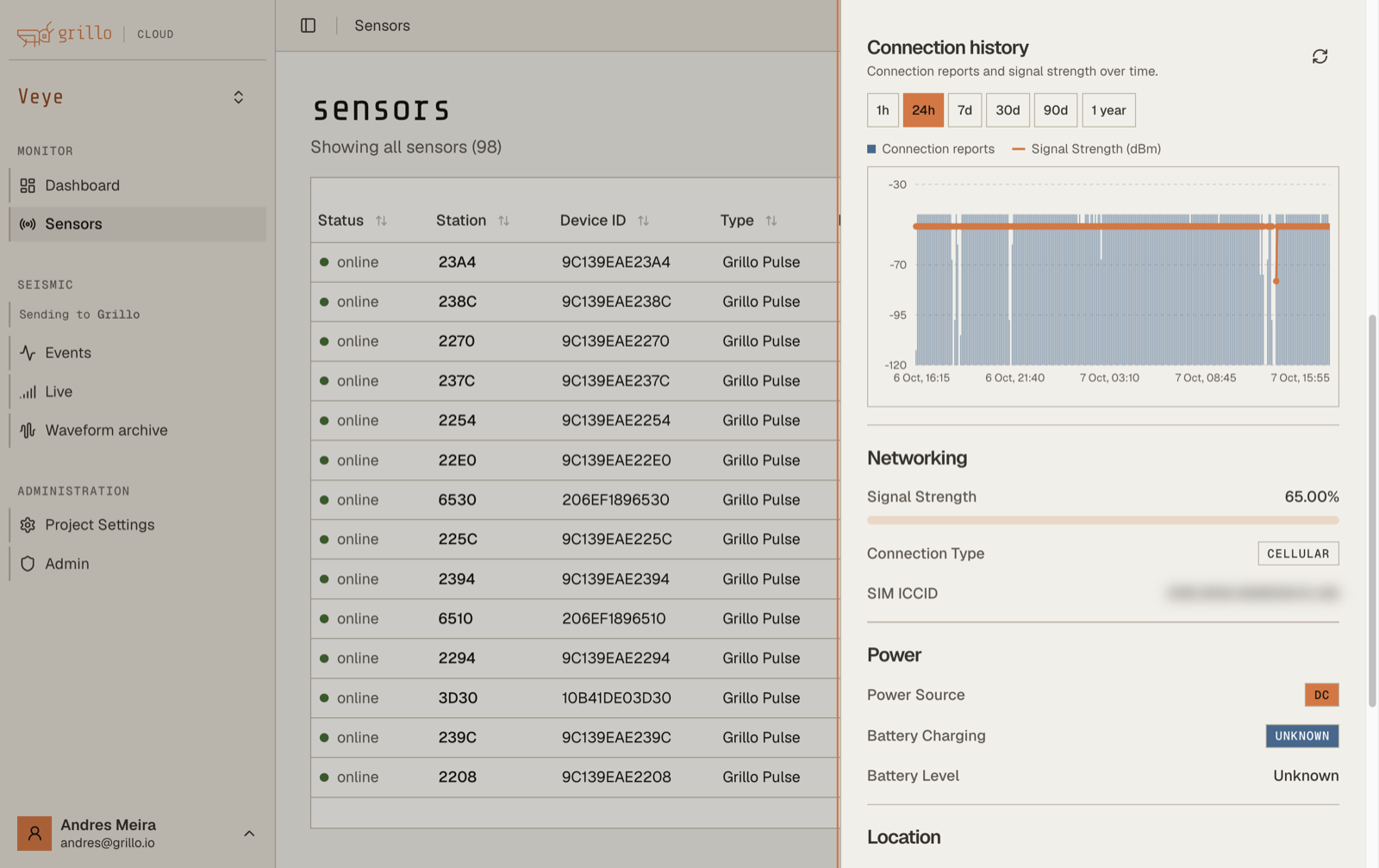
Sensor Details

The sensor detail pane provides comprehensive information about a single sensor, including real-time data, configuration, and health metrics.

Opening sensor details

Access sensor details by:

  • Clicking a sensor on the map
  • Clicking a row in the table view
  • Using the search to find a sensor

Sensor detail pane

Detail pane sections

The top of the pane shows:

  • Station name - FDSN station code
  • Status indicator - Online/Offline/Warning
  • Quick actions - Edit, Remove, etc.
  • Sensor type - Grillo One or Grillo Pulse

Status section

Current sensor status:

FieldDescription
ConnectionOnline/Offline status
Last seenTimestamp of last data
UptimeTime since last restart
SignalWiFi or cellular signal strength
BatteryBattery level (Pulse only)

Location section

Geographic information:

FieldDescription
CoordinatesLatitude, longitude
ElevationHeight above sea level
AddressPhysical address (if entered)
SiteSite description or notes

Configuration section

Current settings:

FieldDescription
Station codeFDSN station identifier
Network codeNetwork identifier
Location codeLocation identifier
Channel codesData channels
Sample rateData sampling frequency

Device section

Hardware information:

FieldDescription
Serial numberUnique device identifier
Device typeGrillo One / Grillo Pulse
FirmwareCurrent firmware version
HardwareHardware revision

Real-time data

Live waveform

If the sensor is online, you may see:

  • Real-time waveform display
  • Data from last few minutes
  • Zoom and pan controls

Data quality indicators

Visual indicators for data quality:

  • Sample rate consistency
  • Gap detection
  • Noise levels

Tabs

Overview tab

Summary of sensor status and key information (default view).

Data tab

Detailed data views:

  • Waveform history
  • Data downloads
  • Quality metrics

Configuration tab

All configurable settings:

  • Station information
  • Location details
  • Advanced parameters

Configuring sensors →

History tab

Historical information:

  • Status changes
  • Configuration changes
  • Alert history

Quick actions

Actions available from the detail pane:

ActionDescription
EditOpen configuration editor
LocateCenter map on this sensor
DownloadExport sensor data
RestartRemote sensor restart
RemoveRemove from network

Status details

Online status

When online, you'll see:

  • Green status indicator
  • Recent timestamp
  • Active data stream
  • Signal strength

Offline status

When offline:

  • Gray status indicator
  • Last seen timestamp
  • No live data
  • Possible reasons

Warning status

Yellow indicator means:

  • Connected but with issues
  • Data quality problems
  • Low battery (Pulse)
  • Weak signal

Error status

Red indicator means:

  • Critical issue detected
  • Requires immediate attention
  • Check error details

Notifications

Sensor alerts

Configure alerts for this sensor:

  • Status change notifications
  • Data quality alerts
  • Battery warnings

Notification settings →

Closing the pane

Close the detail pane by:

  • Clicking the X button
  • Clicking outside the pane
  • Pressing Escape
  • Selecting a different sensor

Mobile view

On mobile devices:

  • Pane opens as full-screen
  • Swipe to navigate tabs
  • Use back button to close

Troubleshooting

Details not loading

  1. Check internet connection
  2. Refresh the page
  3. Verify sensor exists
  4. Check your permissions

Data not updating

  1. Verify sensor is online
  2. Check for connectivity issues
  3. Refresh the pane
  4. Check data latency

Configuration not saving

  1. Check internet connection
  2. Verify you have edit permissions
  3. Review error messages
  4. Try again or contact support