SIM Card Setup - Grillo Pulse

This guide covers how to install and configure a SIM card in your Grillo Pulse for cellular connectivity.

SIM card requirements

Compatible SIM types

The Grillo Pulse uses LTE Cat-4 with automatic fallback to 3G/2G networks:

TechnologySupportedNotes
LTE Cat-4YesPrimary, recommended
4G LTEYesSupported
WCDMA (3G)YesAutomatic fallback
GSM (2G)YesAutomatic fallback

SIM card size

  • Required size: Nano SIM
  • Standard or Micro SIM cards will not fit

Data plan requirements

  • Minimum: Low bandwidth (binary format option reduces usage further)
  • Recommended: M2M/IoT data plans
  • Best value: Plans with unlimited or high data caps

Supported carriers

The Grillo Pulse modem supports a wide range of frequency bands for global coverage. Most carriers worldwide are compatible.

Supported frequency bands

TechnologyBands
LTE-FDDB1, B2, B3, B4, B5, B7, B8, B12, B13, B18, B19, B20, B25, B26, B28, B66
LTE-TDDB34, B38, B39, B40, B41
WCDMAB1, B2, B4, B5, B6, B8, B19
GSM850, 900, 1800, 1900 MHz

Carrier compatibility

With support for LTE-FDD, LTE-TDD, WCDMA, and GSM bands, the Grillo Pulse is compatible with most carriers globally. Check your carrier's supported bands to confirm compatibility.

tip

M2M/IoT SIM cards from carriers typically offer better rates for low-bandwidth devices like the Grillo Pulse.

Coming soon: Starlink Direct to Cell connectivity will be available for the Grillo Pulse in specific regions (TBD). This will enable satellite-based cellular connectivity for truly remote deployments where traditional cellular coverage is unavailable.

Installing the SIM card

Before you begin

  • Power off the sensor
  • Work in a clean, dry environment
  • Have a Nano SIM card ready
  • Have a small Phillips screwdriver ready (if using IP67 enclosure)

Installation steps

  1. Power off the sensor

    • Disconnect power cable
    • Wait 30 seconds for complete shutdown
  2. Access the SIM slot

    • If using IP67 enclosure: Open the enclosure by removing screws
    • If PCB only: SIM slot is directly accessible on the board
  3. Locate the SIM slot

    • Find the Nano SIM card holder on the circuit board
    • Note the orientation diagram near the slot (contacts facing down typically)
  4. Insert the Nano SIM card

    • Orient the SIM according to the diagram
    • Slide into the slot until it clicks
    • Do not force - it should slide in smoothly
  5. Close the enclosure (if applicable)

    • Align the enclosure halves
    • Ensure no cables are pinched
    • Replace and tighten all screws
    • Verify weatherproof seal is intact
  6. Reconnect power

    • Connect the power cable (6-10V DC or USB)
    • Wait for boot sequence to complete (2-5 minutes for cellular connection)

SIM card installation diagram

Activating your SIM

Pre-activated SIM (included with some units)

If your Pulse came with a pre-activated SIM:

  1. SIM should connect automatically
  2. Check dashboard for online status
  3. No additional activation needed

Carrier-provided SIM

If using a SIM from your carrier:

  1. Purchase data plan

    • Contact carrier for IoT/M2M data plan
    • LTE Cat-4 compatible SIM (most modern SIMs)
    • Ensure Nano SIM size
  2. Activate SIM

    • Follow carrier's activation process
    • This may take up to 24 hours
  3. Note APN settings (if required)

    • Get APN name from carrier
    • Username/password if required (often blank)
  4. Install and configure

    • Install Nano SIM in sensor
    • Most carriers auto-configure APN
    • Manual APN configuration rarely needed

APN configuration

Most carriers work with automatic APN detection. Manual configuration may be needed for some carriers.

Accessing APN settings

  1. Connect to sensor's configuration interface
  2. Navigate to Cellular settings
  3. Enter APN information

Common APN settings

CarrierAPNUsernamePassword
Example Carrierinternet.example.com(blank)(blank)

APN troubleshooting

If cellular won't connect after APN configuration:

  1. Verify APN spelling exactly matches carrier's info
  2. Check if username/password required
  3. Restart sensor after changes
  4. Contact carrier to verify APN

Verifying cellular connection

After SIM installation:

  1. Check LED status

    • Should show cellular connection indicator
    • May take 2-5 minutes for initial connection
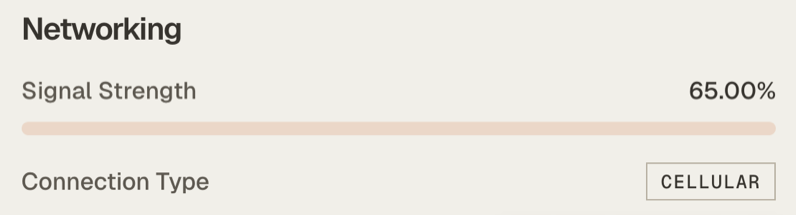
  2. Check signal strength

    • View in configuration interface or dashboard
    • Minimum 2 bars recommended
  3. Verify in dashboard

    • Log into cloud.grillo.io
    • Check sensor shows "Online"
    • Verify connection type shows "Cellular"

SIM card management

Monitoring data usage

  • Check usage through your carrier's portal
  • Dashboard may show data statistics
  • Set up alerts for high usage

Changing SIM cards

To replace or change SIM:

  1. Power off sensor
  2. Open enclosure
  3. Remove old SIM (press to eject if spring-loaded)
  4. Insert new SIM
  5. Close enclosure
  6. Update APN settings if needed

SIM security

  • Some carriers support SIM PIN protection
  • Consider for high-security deployments
  • Note: PIN entry may require physical access

Troubleshooting

SIM not detected

  1. Power off and reseat the SIM
  2. Verify SIM orientation
  3. Check for bent pins in slot
  4. Try SIM in a phone to verify it works

No cellular connection

  1. Verify SIM is activated with carrier
  2. Check cellular coverage at location
  3. Verify antenna is connected
  4. Check APN settings

Intermittent connection

  1. Check signal strength
  2. Reposition antenna
  3. Verify data plan is active
  4. Check for carrier outages

Full troubleshooting guide →

Next steps

After SIM setup:

  1. Configure network settings
  2. Provision to Grillo Cloud