Provisioning - Grillo Pulse
Provisioning connects your Grillo Pulse sensor to your Grillo Cloud account, enabling remote monitoring and configuration.
Prerequisites
Before provisioning, ensure you have:
- A Grillo Cloud account at cloud.grillo.io
- An organization created in the dashboard
- A network created within your organization
- Your sensor connected to the internet (WiFi or cellular)
- Your sensor's Device ID (found on PCB label or packaging)
Provisioning methods
Method 1: QR code scan (Recommended)
The fastest way to provision your sensor:
-
Open the Grillo Cloud dashboard
- Log into cloud.grillo.io
-
Navigate to your network
- Select your organization
- Select the network where you want to add the sensor
-
Click "Add Sensor"
- Look for the add/plus button in the sensors section
-
Scan QR code
- Use your phone's camera or the dashboard's scanner
- Scan the QR code on the Pulse enclosure
-
Select device type
- Choose "Grillo Pulse" when prompted
-
Confirm registration
- Verify the Device ID matches your device
- Click "Register" or "Confirm"
-
Wait for connection
- The sensor will connect within 1-5 minutes
- Status will change from "Pending" to "Online"
Method 2: Manual entry
If QR scanning isn't available:
-
Open the Grillo Cloud dashboard
- Log into cloud.grillo.io
-
Navigate to your network
- Select your organization and network
-
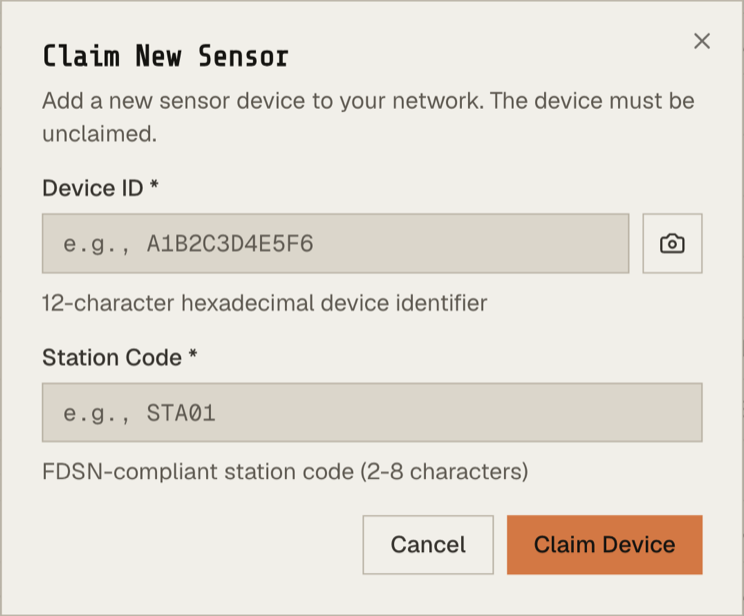
Click "Add Sensor"
- Choose "Manual entry" option
-
Enter sensor details
- Device ID (found on PCB label or packaging)
- Device type: Grillo Pulse
-
Complete registration
- Click "Register"
- Wait for sensor to appear online
After provisioning
Once your sensor is provisioned and online:
1. Verify data streaming
- Check the sensor's detail page in the dashboard
- You should see real-time or recent data indicators
- Connection type should show WiFi or Cellular
2. Configure sensor settings
Set important metadata:
- Station name - FDSN-compatible station code
- Location - Coordinates (latitude, longitude)
- Elevation - Height above sea level
- Site description - Notes about the installation
Learn more about sensor configuration →
3. Verify on map
- Navigate to the map view
- Your sensor should appear at its configured location
- Click to verify details
4. Check connectivity details
For Pulse sensors, also verify:
- Connection type (WiFi vs Cellular)
- Signal strength
- Battery status (if applicable)
Provisioning status
| Status | Meaning |
|---|---|
| Pending | Sensor registered but not yet connected |
| Online | Sensor connected and streaming data |
| Offline | Sensor registered but not currently connected |
| Error | Configuration or connection issue |
Remote deployment considerations
For sensors deployed in remote locations:
Pre-provision before deployment
- Set up sensor on WiFi in your office/lab
- Complete provisioning and verify it works
- Configure settings (station name, etc.)
- Then deploy to remote location with cellular
Verify cellular before leaving site
When deploying remotely:
- Install and power on sensor
- Wait for cellular connection (up to 5 minutes)
- Verify "Online" status in dashboard before leaving
- Check signal strength is adequate
Troubleshooting
Sensor stays "Pending"
- Verify the sensor has power (LED is on)
- Check network connectivity (WiFi or cellular)
- For cellular: verify SIM is active and has signal
- Try restarting the sensor
Wrong network
If you accidentally added the sensor to the wrong network:
- Remove the sensor from the current network
- Re-add it to the correct network using the same process
Device ID not recognized
- Verify you're entering the correct Device ID from the PCB label
- Check for typos (0 vs O, 1 vs l)
- Contact support if the sensor isn't in the system
Cellular connection but not provisioning
- Verify firewall/network allows connection to grillo.io
- Check cellular data plan is active
- Verify APN settings are correct
Deprovisioning
To remove a sensor from your network:
- Navigate to the sensor in the dashboard
- Open sensor settings
- Click "Remove" or "Delete"
- Confirm the action
Deprovisioning removes the sensor from your network but does not factory reset the device. Network configuration (WiFi credentials, cellular settings) will remain intact.
Factory reset
To completely reset a Grillo Pulse:
- Open the enclosure (see installation guide)
- Locate the reset button on the circuit board
- Hold the reset button for 10+ seconds
- Release when the LED changes pattern
- Close and seal the enclosure
- The sensor will restart in setup mode
Next steps
With your sensor provisioned: